
A product by EulClavie
Sales & Inventory
A simple system for taking orders, tracking stock, and knowing your cash is right at closing.
It runs on any phone, tablet or laptop with a browser. Nothing to install, and it keeps working even when the internet does not.
Honest by design
What it does, and what it does not do
Before anything else, let us be clear about what you are getting. This is a sales and stock tracking system. It is not a BIR-accredited POS.
Run your counter, all day
- Records every sale, whether the customer pays in Cash, GCash or Maya.
- Tracks your stock automatically. Every sale takes it down, every delivery puts it back.
- Counts the cash drawer daily, so you know the money in the box matches the sales on the screen.
- Shows you what actually sells, by day, by hour and by item.
Touch your BIR paperwork
- It does not print BIR official receipts.
- It does not register with, report to, or change anything about your BIR registration.
- It does not replace whatever receipting you do today.
The tour
Everything it does, in plain language
No jargon, no feature bingo. Here is what your staff see and what you get out of it.
01
The sell screen: a whole sale in three taps
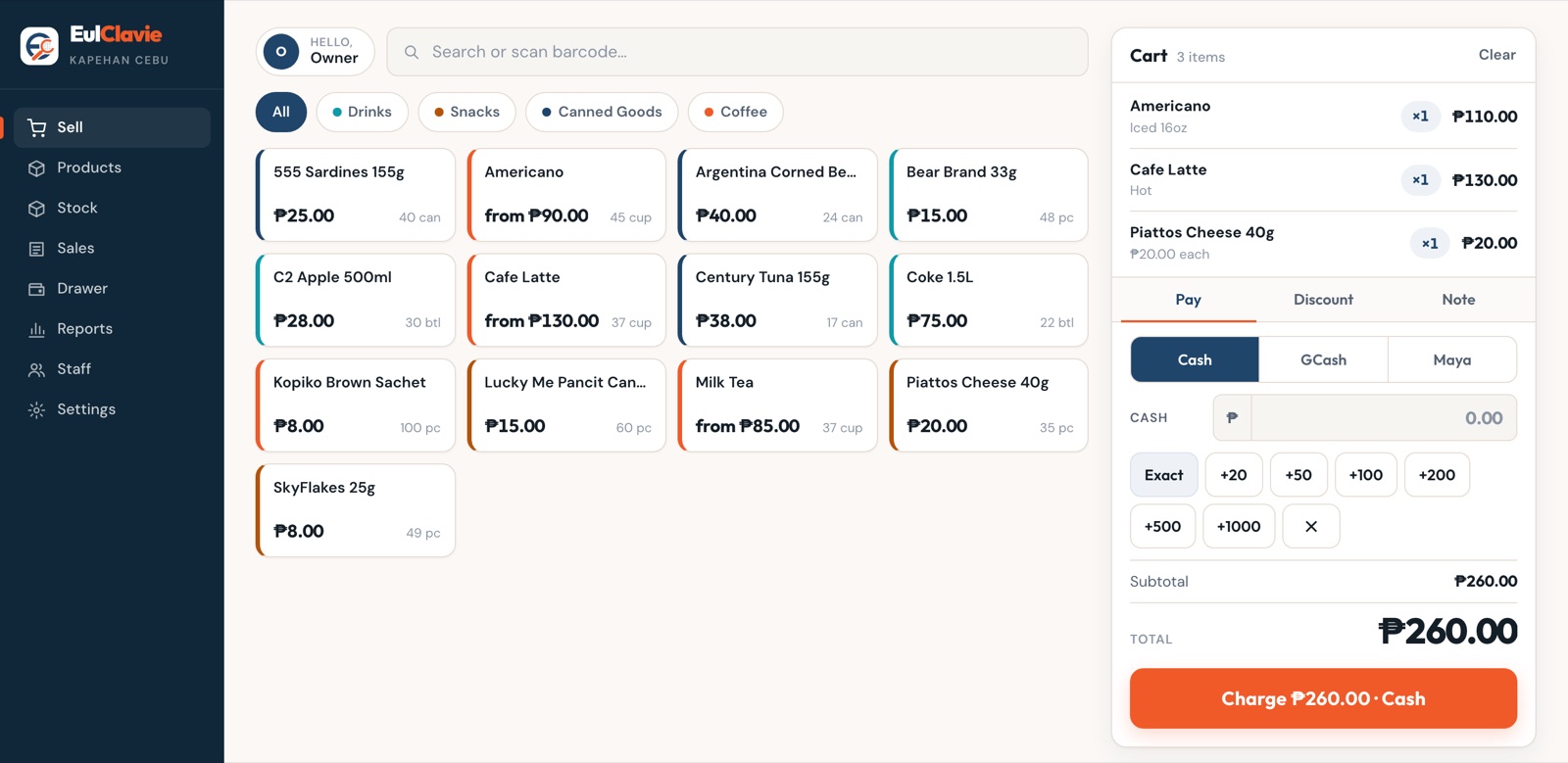
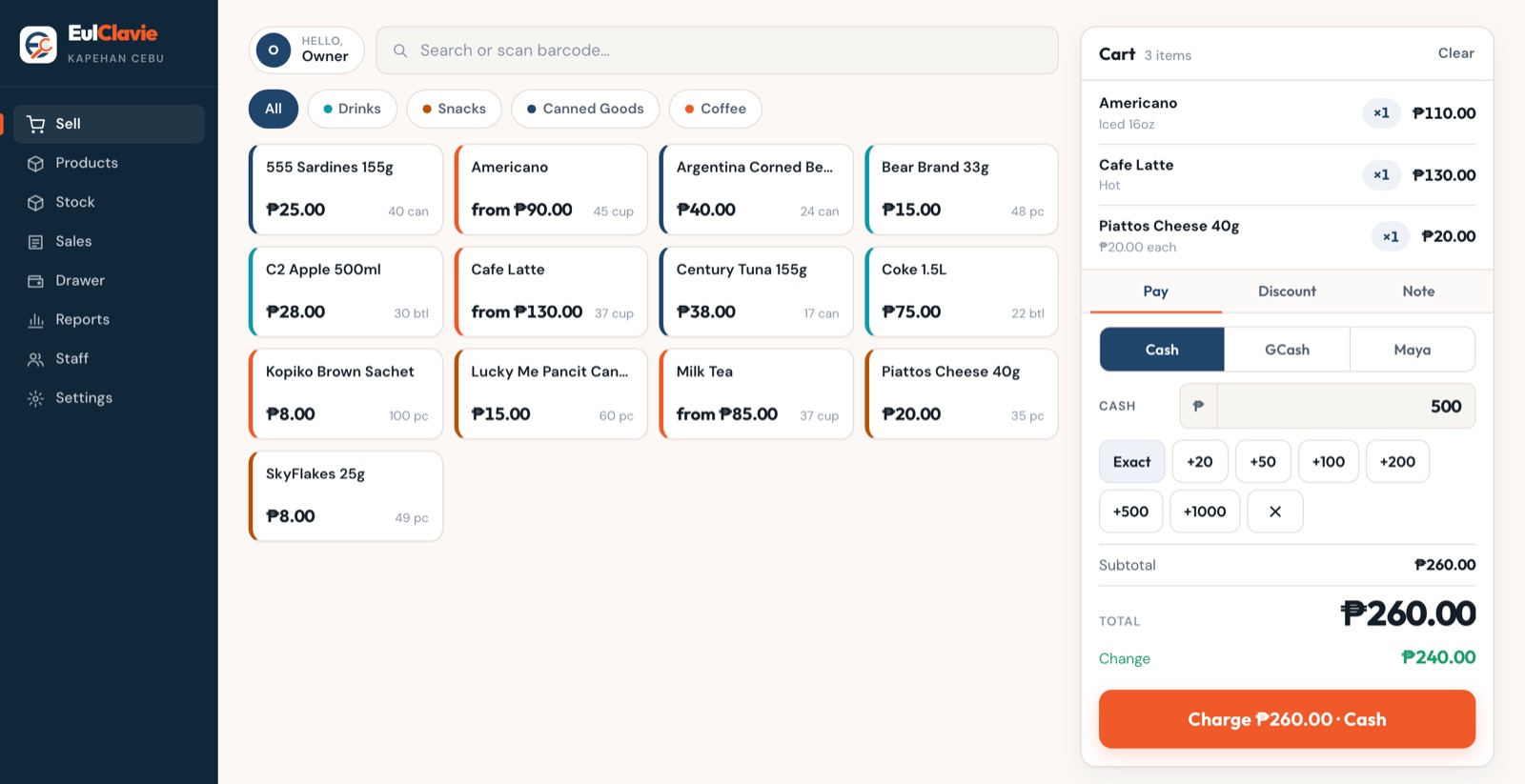
Tap the item. Tap the cash the customer hands over. Tap Charge. The screen shows the change, and the sale is saved. That is the entire job, fast enough for a morning rush.
Paying by GCash or Maya instead? The reference number is saved right with the sale, so matching payments later takes seconds.
02
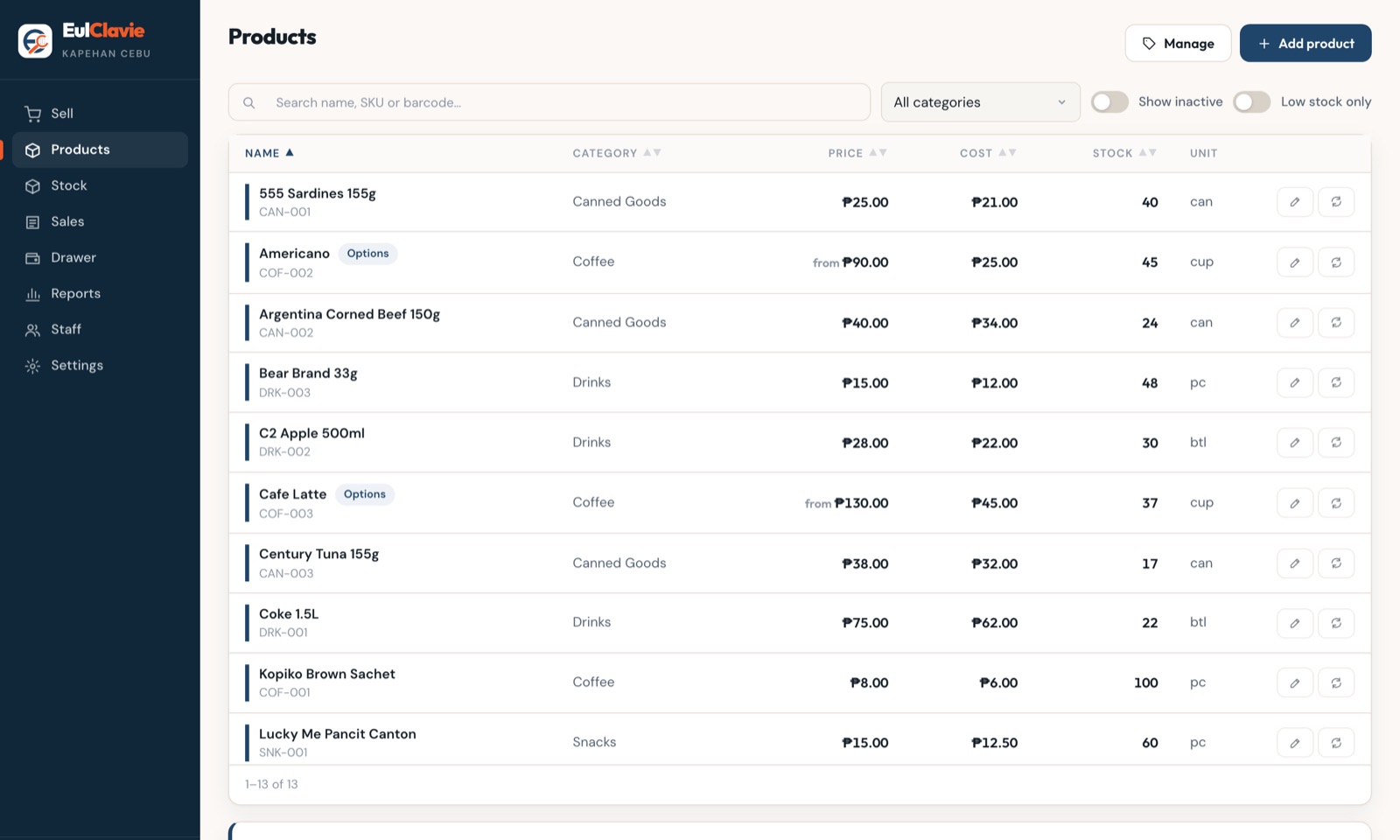
Sizes and add-ons: one product, many prices
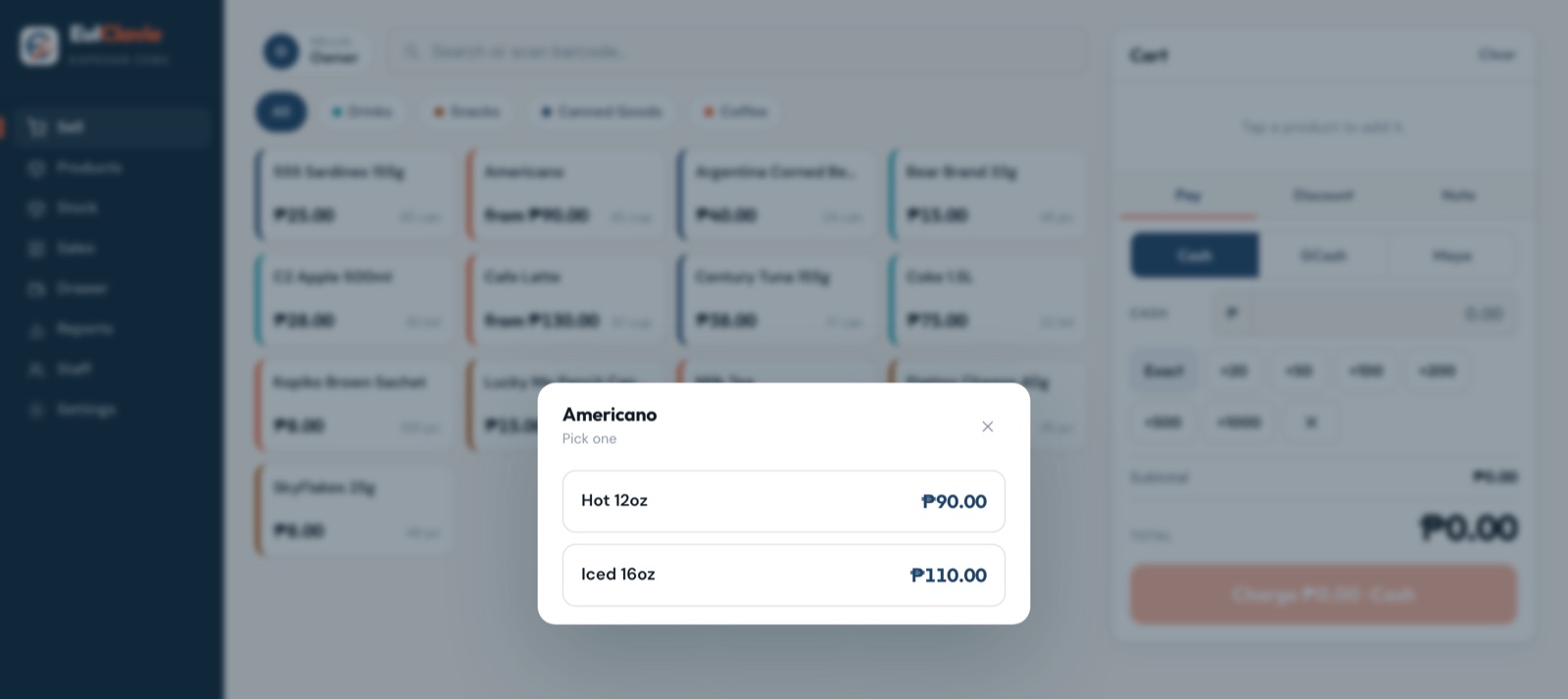
An Americano is not one price. On the menu it shows "from" pricing, and the cashier simply picks Hot or Iced when ringing it up.
It goes further with full option groups. A Size group where picking one sets the price, plus add-on groups like Extra Shot or Oat Milk, where each choice adds its own amount to the total.
And your reports keep up: you see which size and which add-ons actually sell, not just "Americano".
03
Barcode: point, beep, done
Scan items straight into the sale using the camera already on your phone or tablet. If you prefer a dedicated scanner, plug in any ordinary USB scanner and it just works. No special hardware, no special setup.
04
Discounts: Senior and PWD, done right
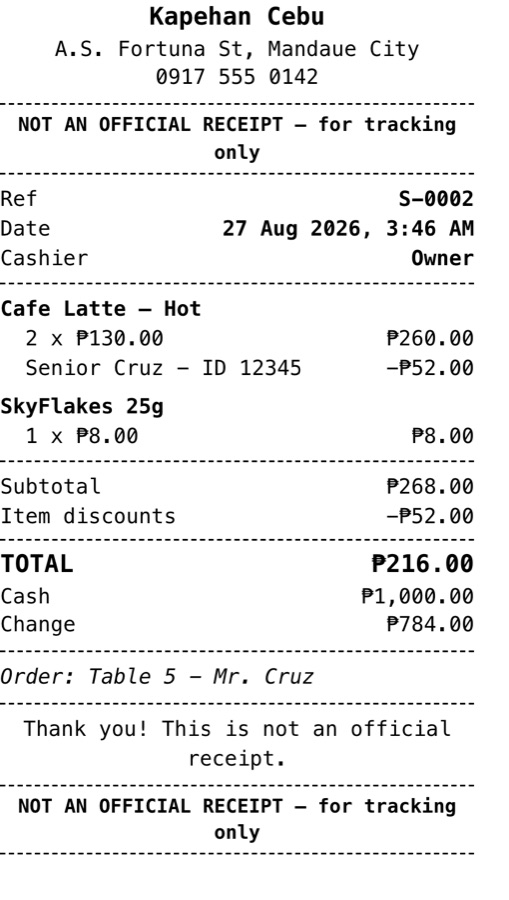
Philippine Senior Citizen and PWD discounts are handled the way the rules say, without your cashier doing arithmetic on a receipt. The 20 percent is applied for you, and if you are VAT-registered, the VAT is removed first, in the correct order.
The customer's name and ID number are recorded with the sale, and the discount can apply to one item or the whole bill.
05
Offline: the internet dies, you keep selling
Brownout, broken router, load ran out. Whether the connection is gone for an hour or a week, the counter keeps working. Sales save on the device, and the moment the connection returns they upload themselves.
No duplicates, ever. And staff can even log in while offline, so a dead connection at opening time does not stop the day.
06
Recipes and ingredients: for cafes and kitchens
Tell it once that an iced coffee takes 20 grams of beans, 10 grams of sugar and 20 ml of milk. From then on, every sale deducts those ingredients automatically. The system shows how many more cups you can make with what is on hand, and warns you before you run out.
Ingredient prices feed straight into the true cost of every drink, so your profit reports are real numbers, not guesses. Buy a 1 kg bag of beans and the cost per gram updates automatically.
07
Stock: it counts so you do not have to
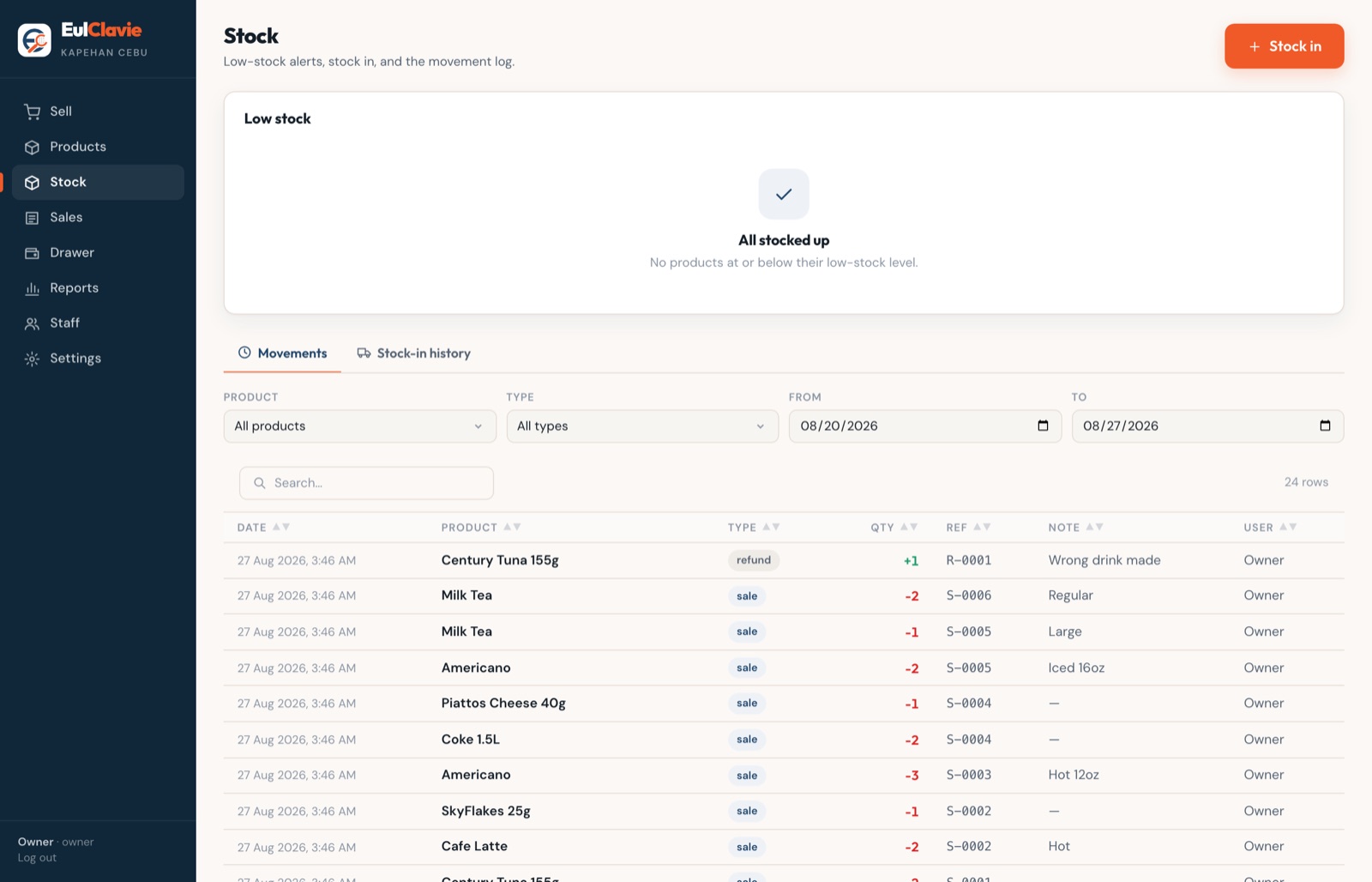
Every sale takes stock down. Every delivery puts it back. Each item has its own low-stock warning, so you hear about it before the shelf goes empty, not after.
A Levels view shows every count in one place, plus something most owners have never seen: the peso value of what is sitting on the shelf right now.
08
Refunds: controlled, not casual
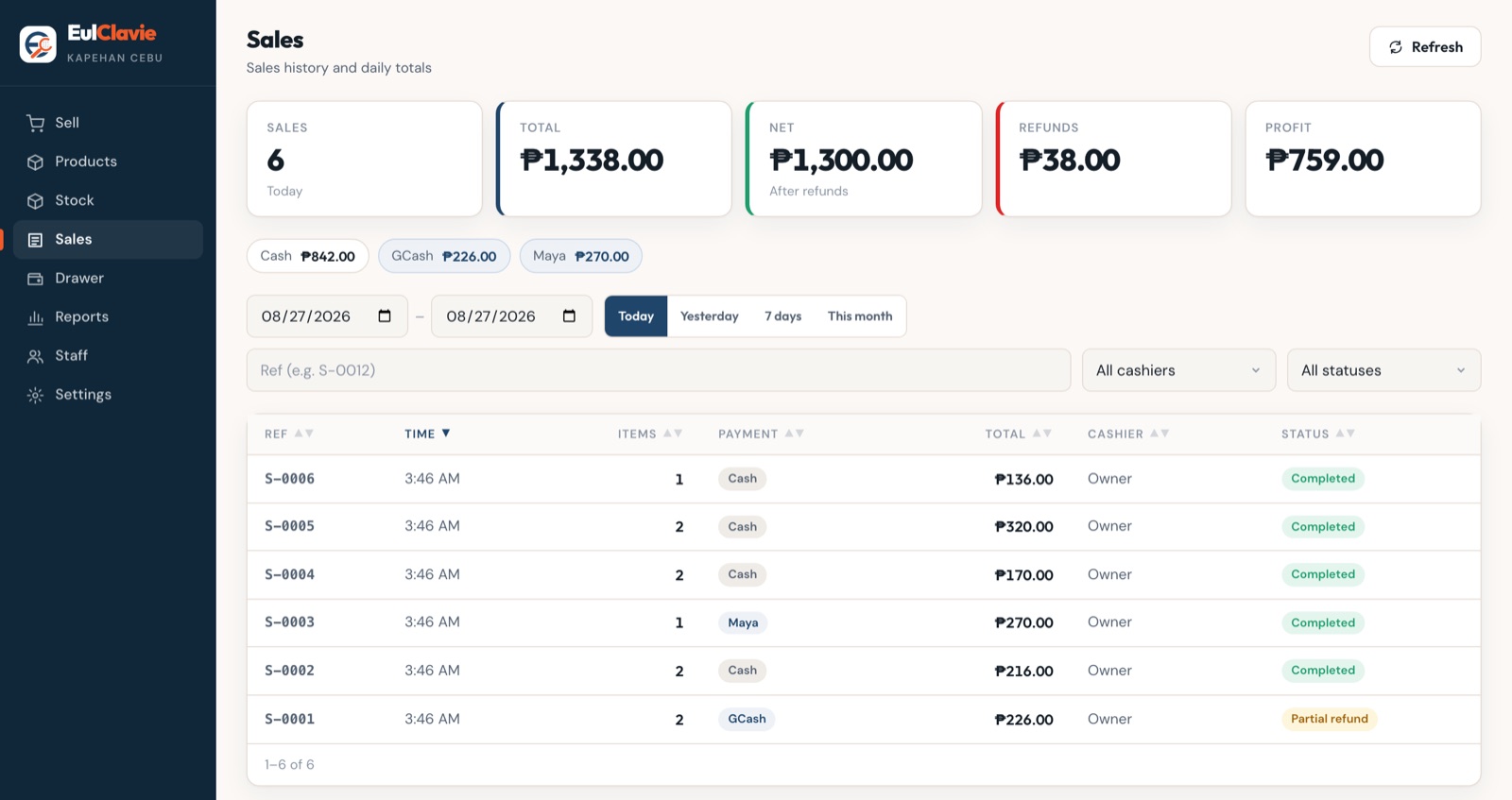
A refund needs a manager's approval, and a reason is compulsory. Partial refunds are allowed, and stock comes back if you choose. Refunds come off the day's totals, so your net sales stay true.
09
Cash drawer and end of day: the math is shown
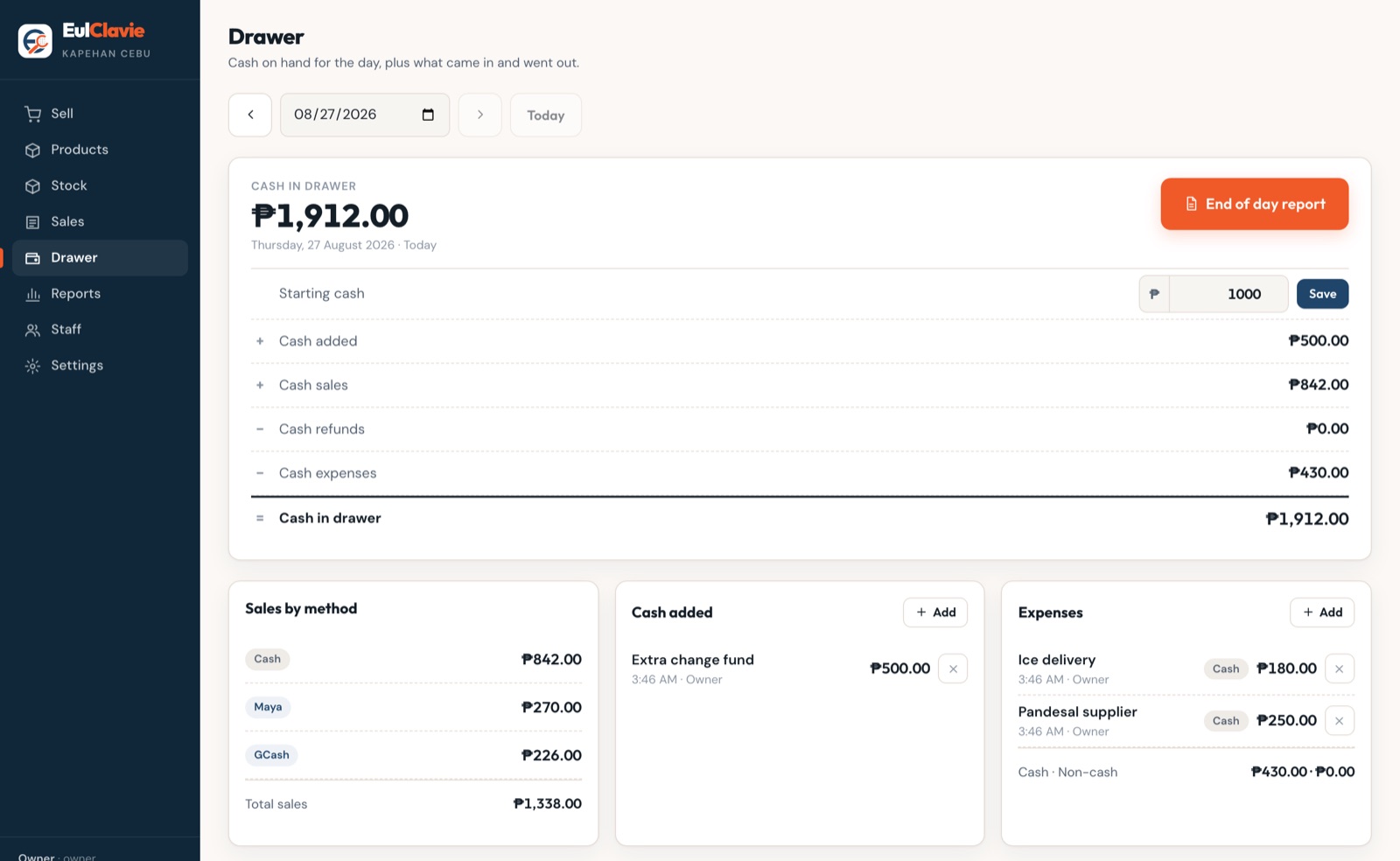
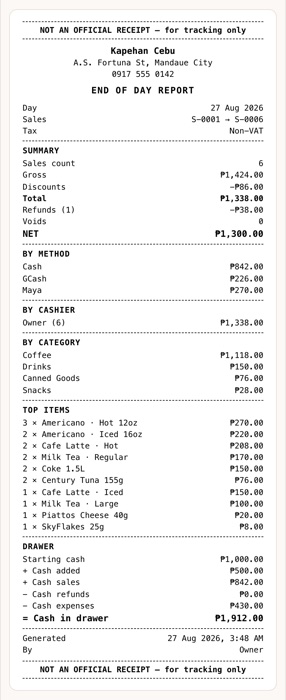
At closing, the system lays the equation in front of you: starting cash, plus cash sales, minus refunds and expenses, equals what should be in the box. Count the drawer and you know instantly if something is off, and by how much.
One end-of-day page gathers gross, net, per-cashier totals and best sellers. Hand it to the bookkeeper and you are done.
10
Staff: every sale has a name on it
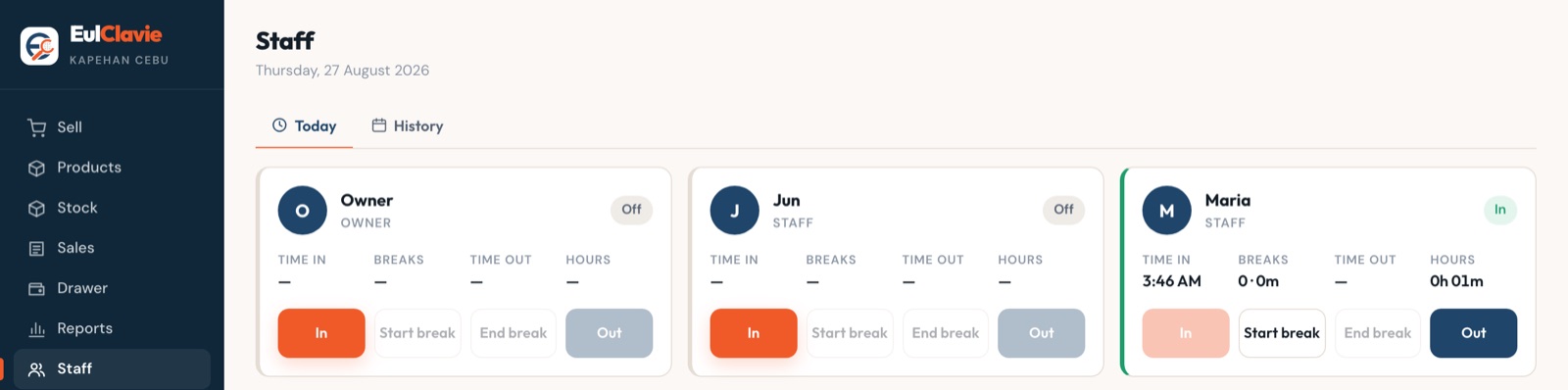
Each person logs in with their own PIN or password. Time in and time out are recorded, with an optional selfie at clock-in so nobody punches for an absent friend. Hours are totalled for you, and every sale is signed by the cashier who made it.
11
Reports and export: profit, not just revenue
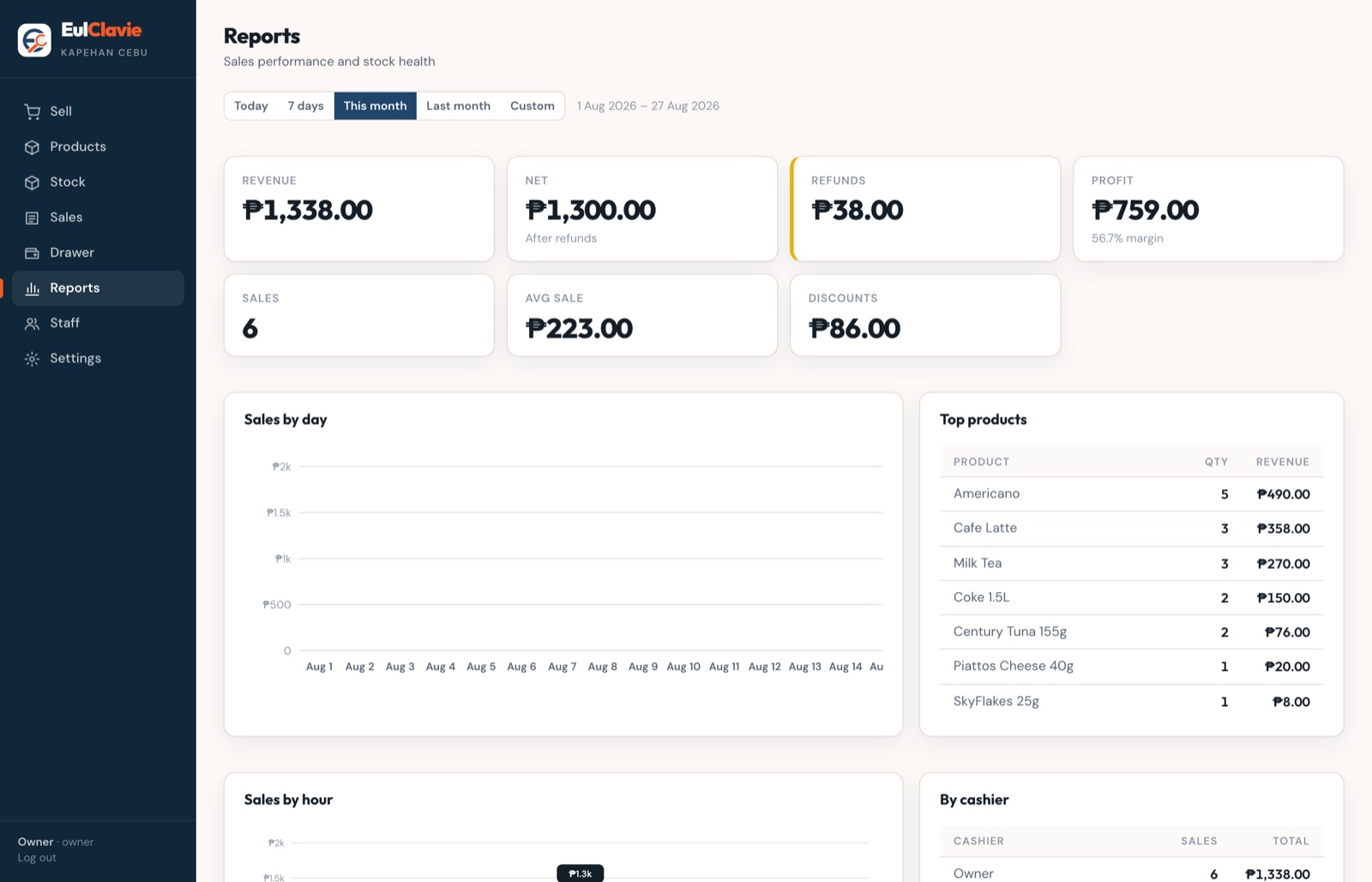
Sales totals only tell you money moved. These reports tell you what you kept: profit and margin per item, your busiest hours, your best and worst sellers. Every table exports to Excel with one tap, so your accountant gets files, not screenshots.
Owners can also get a daily email each morning: yesterday's sales, yesterday's profit, and what needs restocking, before you have finished your coffee.
12
Your brand on the screen
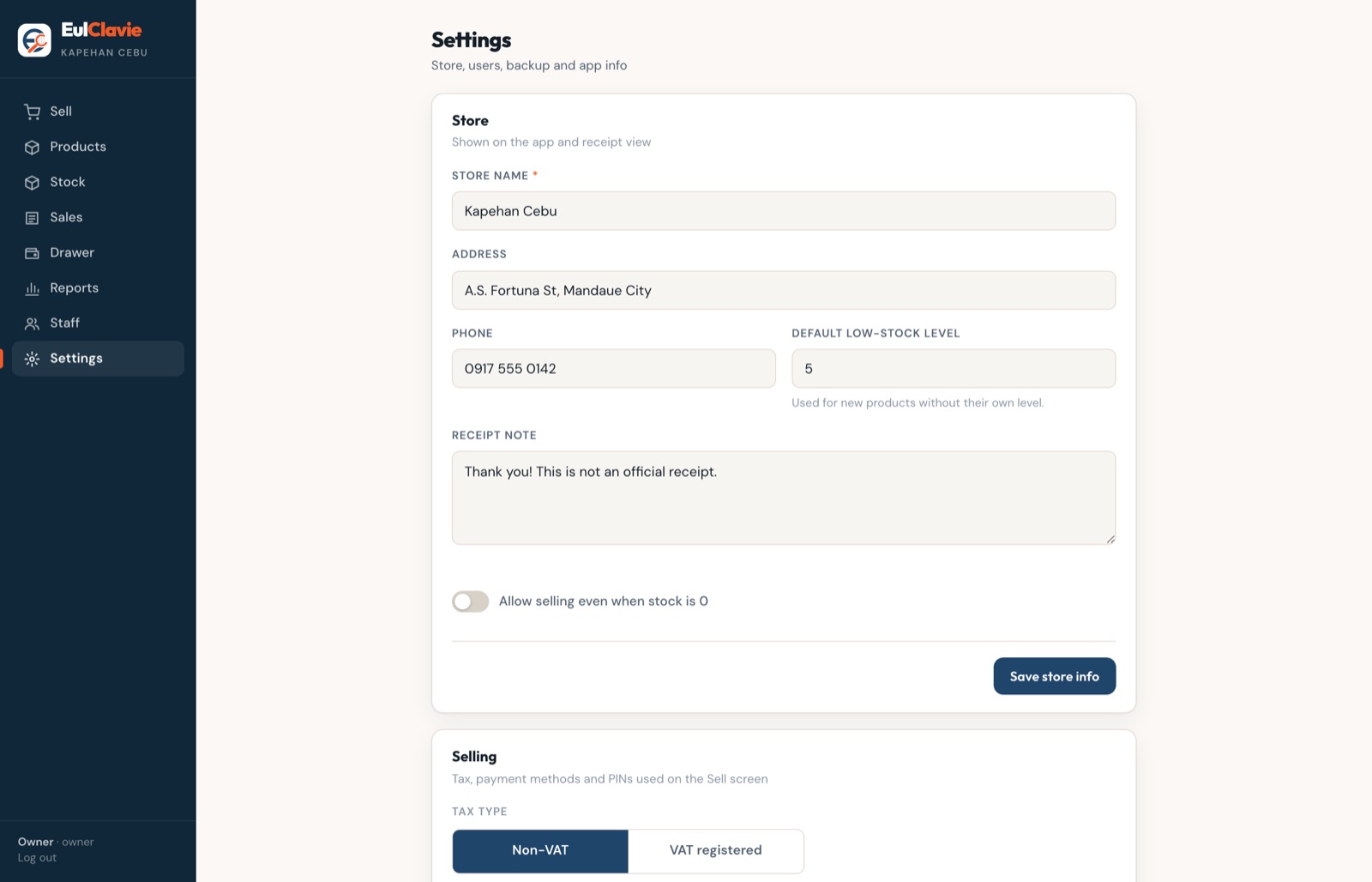
Your store's own logo appears on the login screen and throughout the app, so it feels like your system, not somebody else's. A small "Sales & Inventory by EulClavie" line sits quietly underneath.
13
Safe: your data, guarded
Passwords are stored scrambled, so not even we can read them. And every store's data is backed up off-site continuously, running just seconds behind live. A broken tablet or a lost phone does not mean lost records.
Hardware
It runs on what you already own
There is no terminal to buy, no printer bundle, no proprietary box gathering dust when it breaks. If the device has a browser, it can run your store.
Any browser device
An old Android phone, a hand-me-down tablet, the laptop in the back office. If it opens a web page, it works.
Installs like an app
Add it to the home screen and it opens full screen with its own icon, just like an app from the store. Nothing to download from anywhere else.
No terminal to buy
Your startup cost on hardware is zero if you have a phone. Add devices whenever you like, they all see the same store.
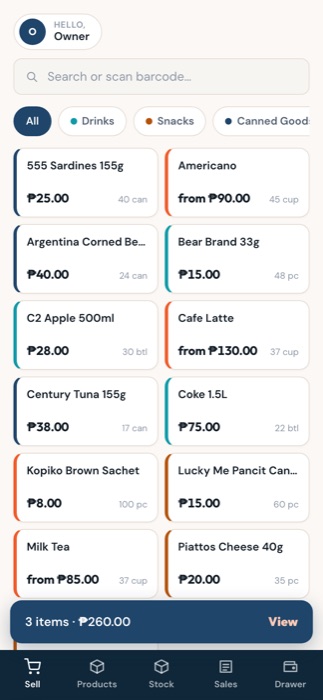
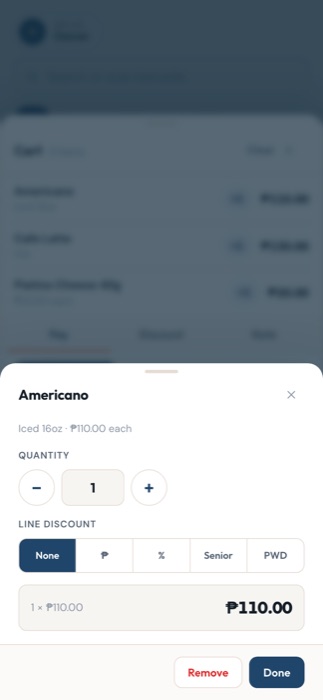
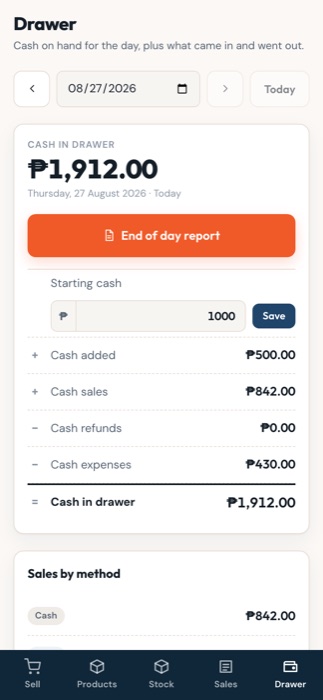
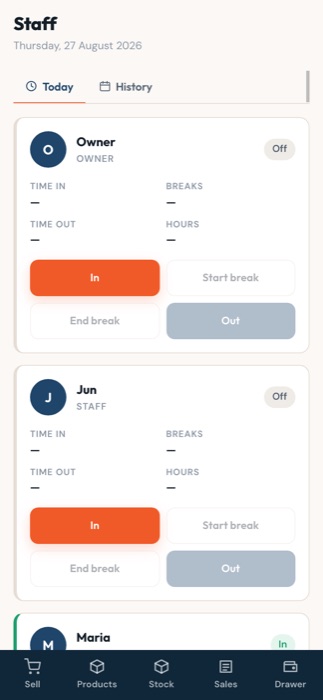
The same store, running on ordinary phones. Order taking, the cart, the drawer and the time clock.
Getting started
From price list to first sale in three steps
You do not need to encode anything, learn anything technical, or set aside a weekend. Most of the work is ours.
Talk to us Test it out-
1
Send us your menu
A photo of your price list is enough. Snap it, send it, done.
-
2
We load everything in for you
Products, prices, sizes, add-ons, ingredients if you use recipes. You open the app and your store is already in it.
-
3
A short walkthrough, then you run it
About an hour with whoever will actually use it, at the counter, on your own devices. After that, it is yours.
Know your numbers by tonight's closing.
Tell us about your store, your menu and how you sell today. We will show you exactly how it would look running your counter.